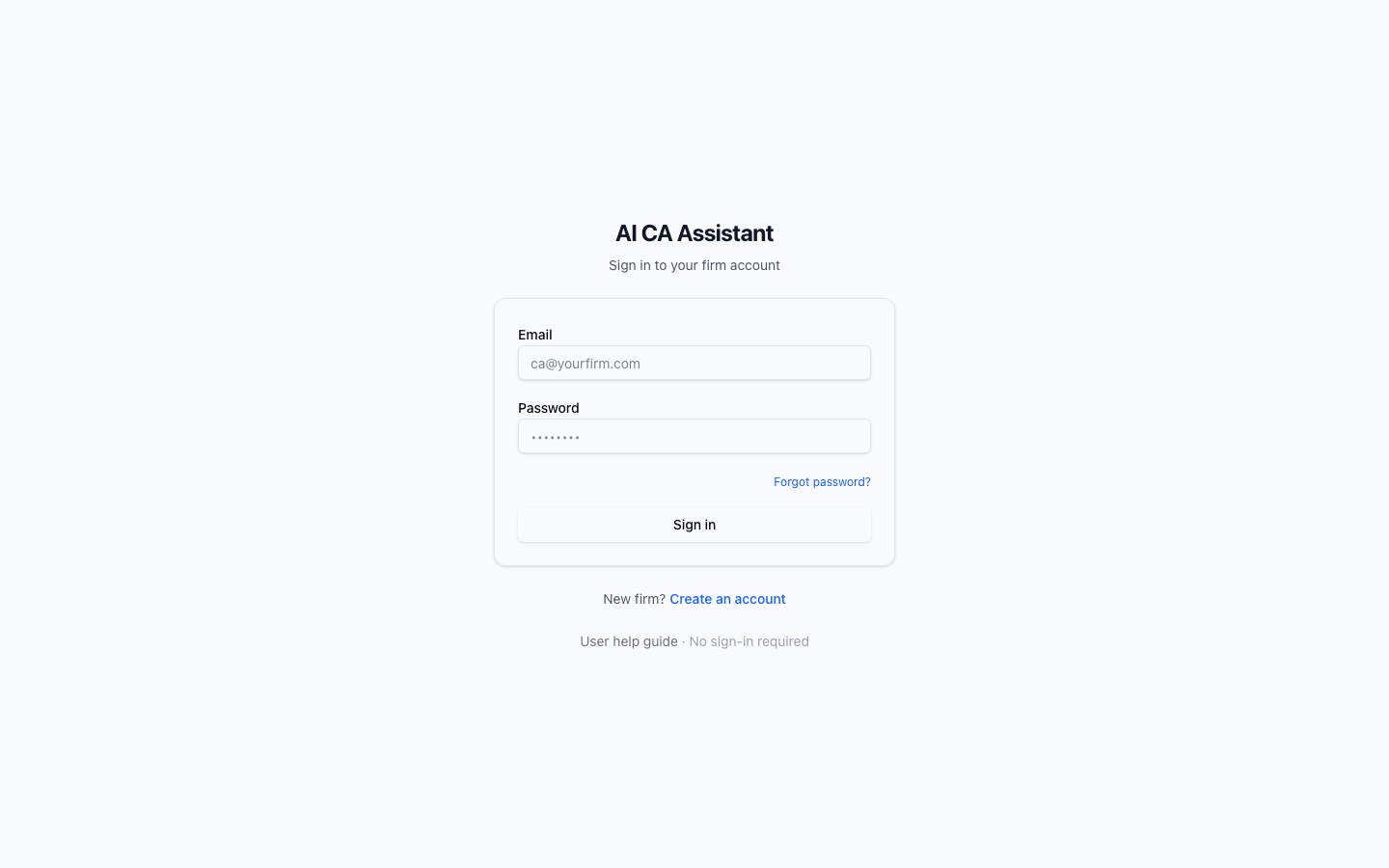
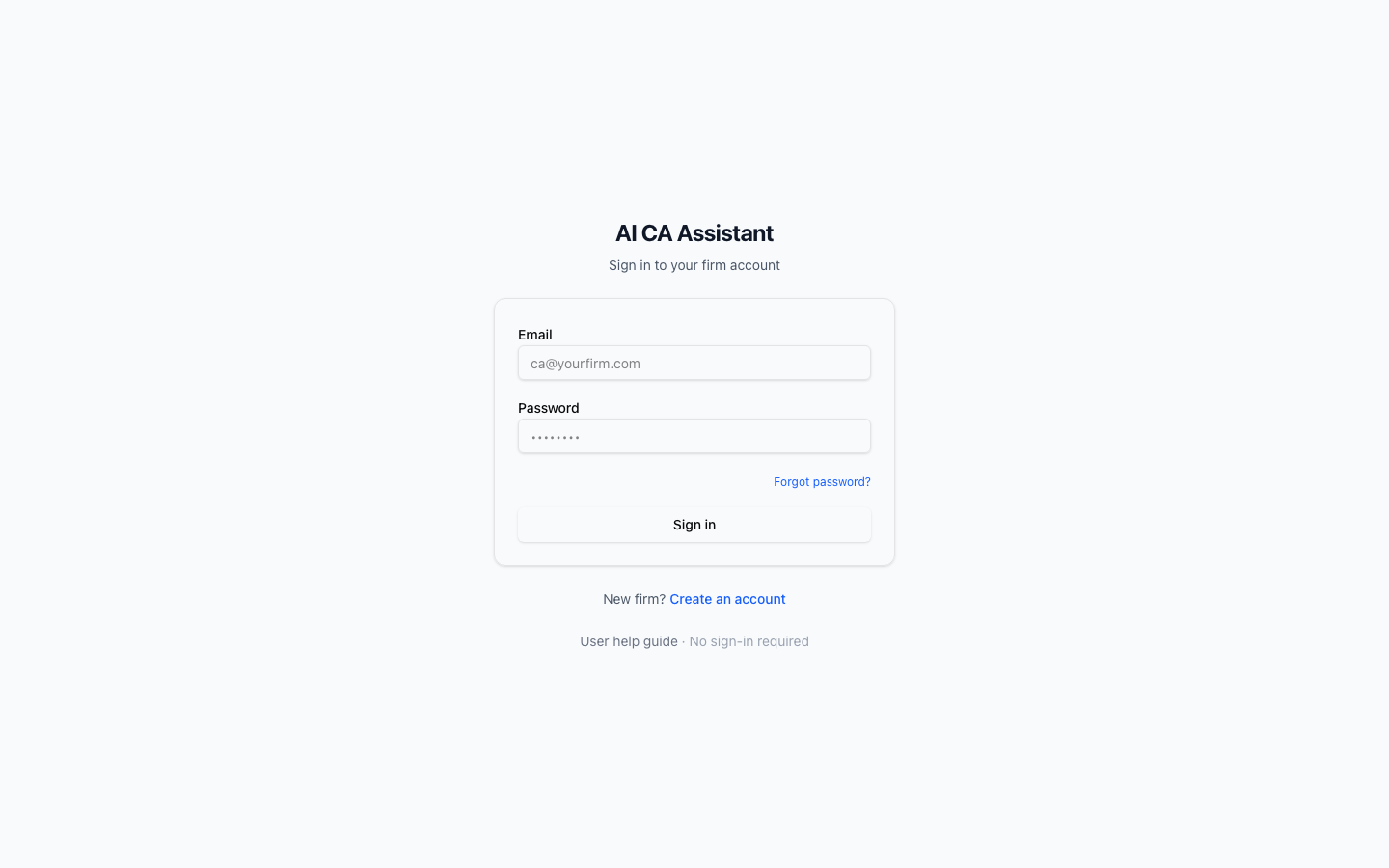
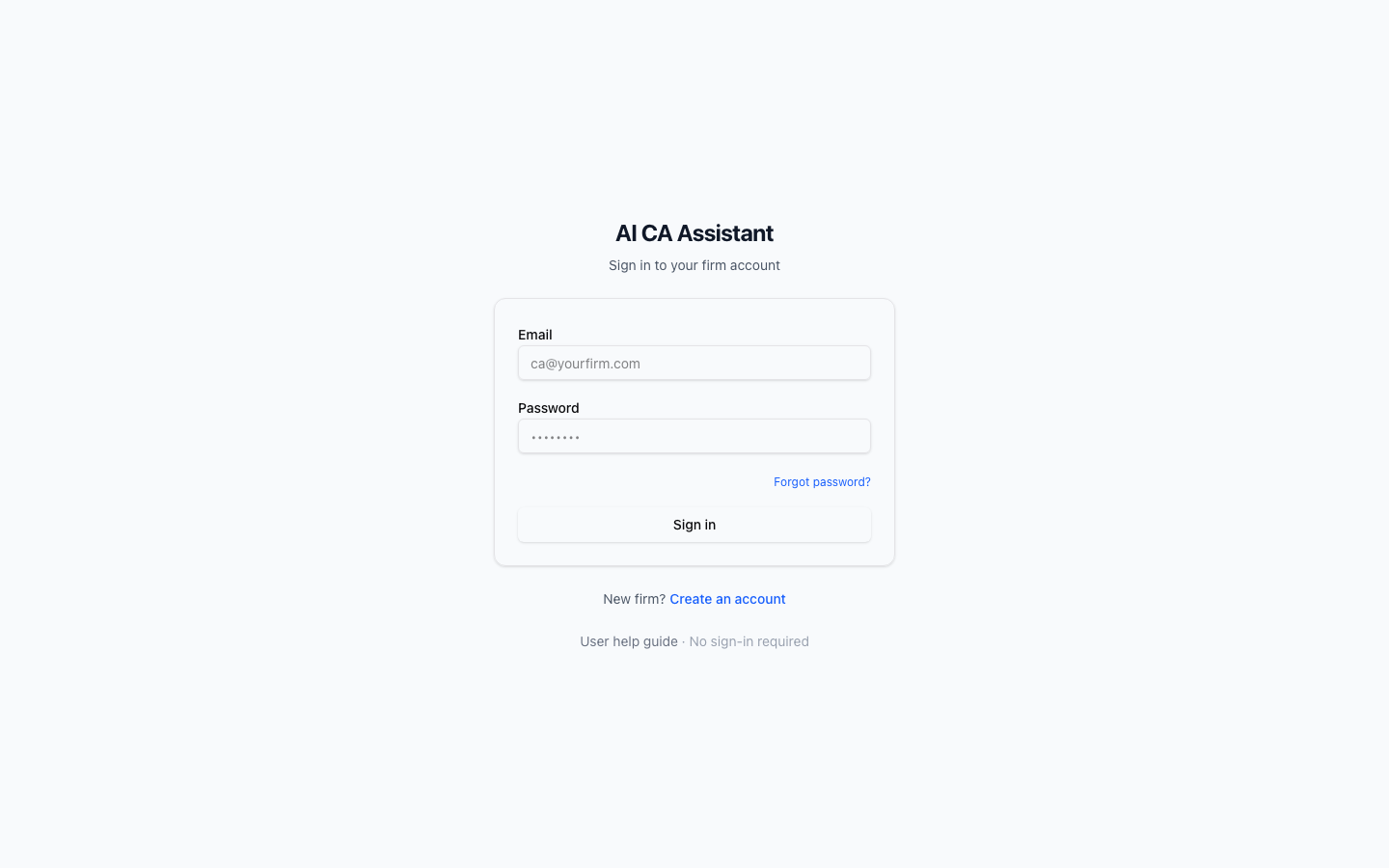
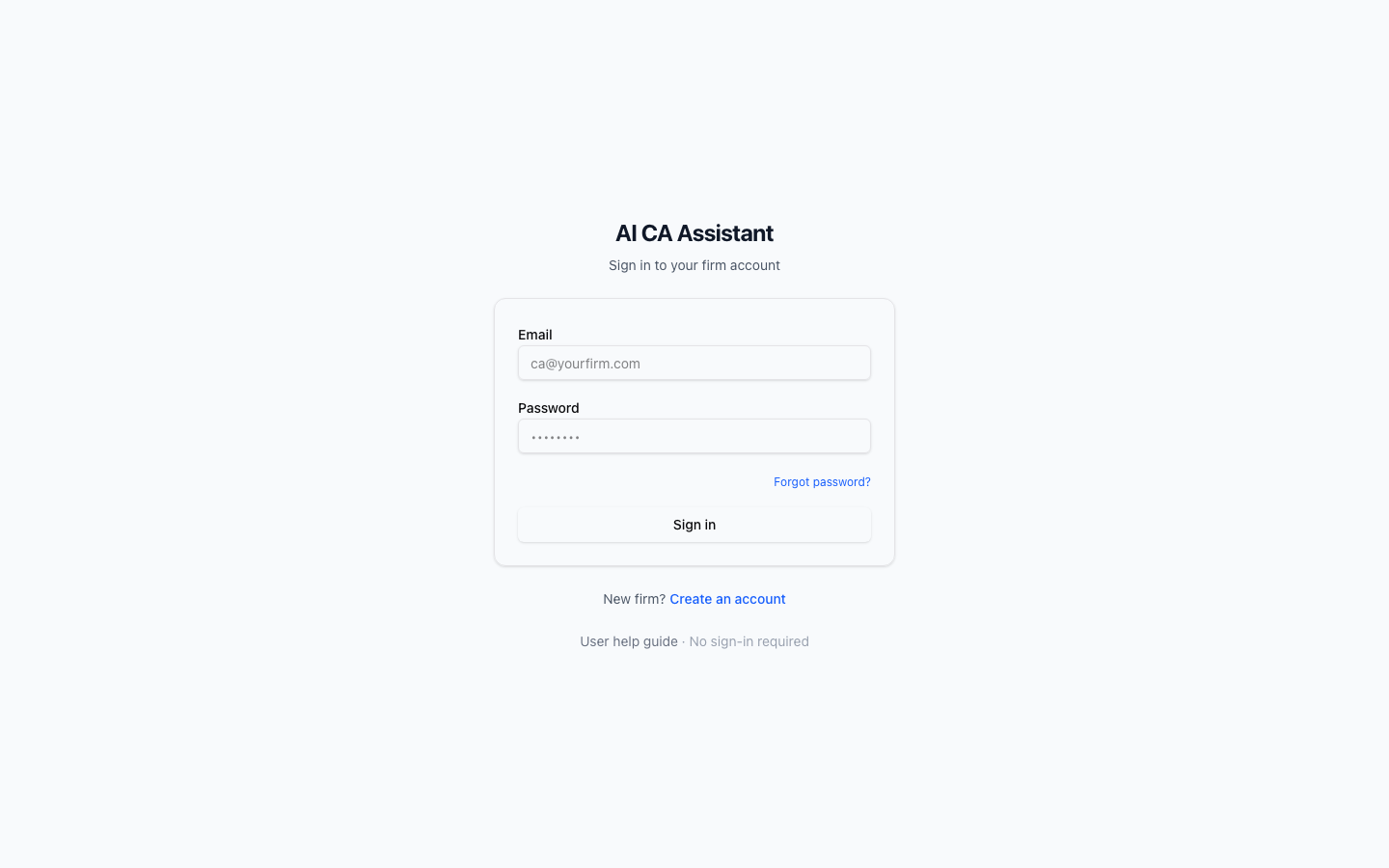
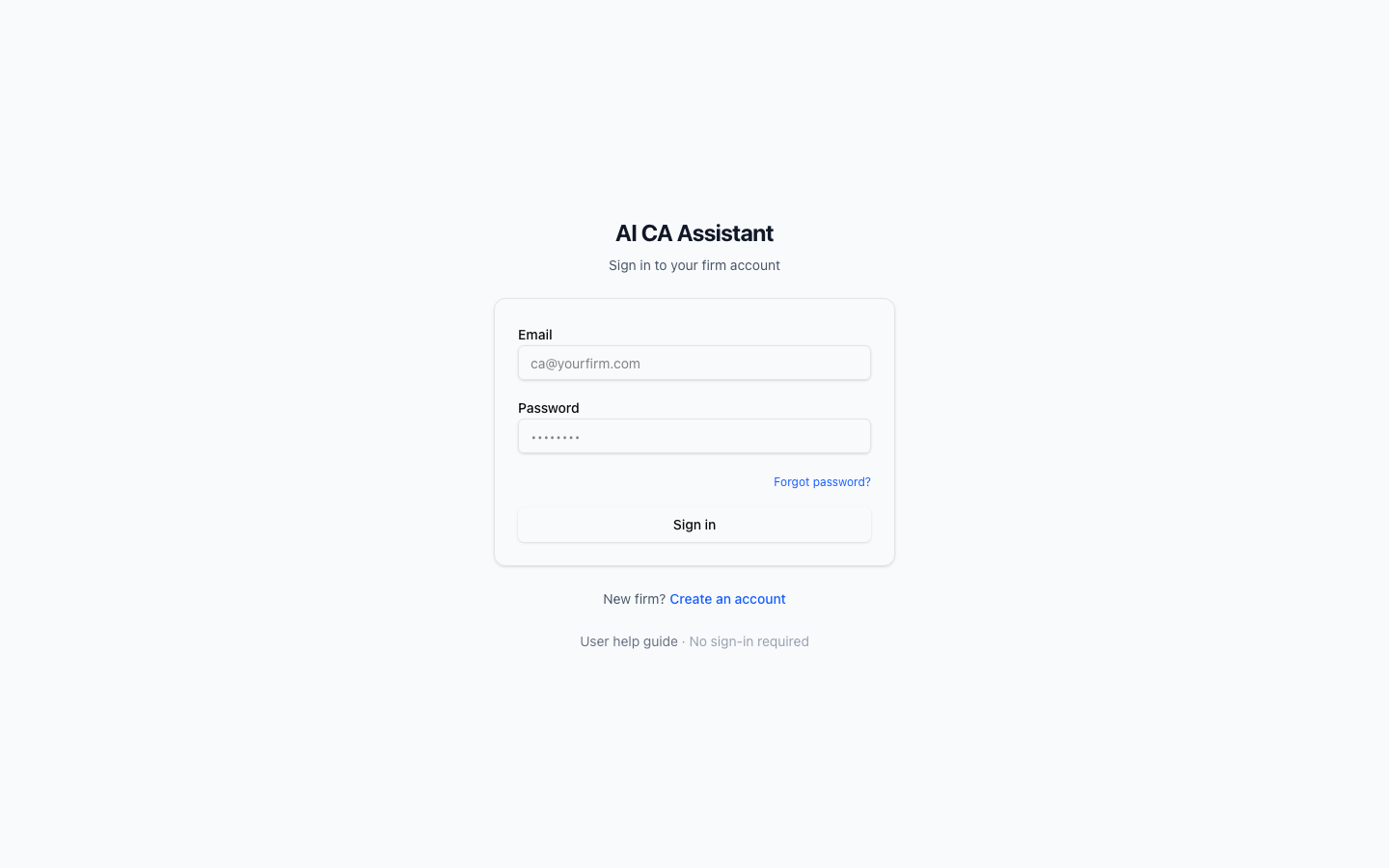
Figure 1 — Login
In the app: this guide is linked from the sidebar under Firm → Help. Add screenshots in web/public/help/help-assets/ in the repository.
Print to PDF: Open this page in a new tab → Ctrl/Cmd+P → “Save as PDF” → enable background graphics.
For Chartered Accountant firms: clients, documents, tax tools, GST reconciliation, imports, and compliance.
Use your firm email to sign in. New users may need an invitation or signup flow your administrator enabled.
The home screen summarizes your firm at a glance: client count, processed documents, open notices, and tax calculations. Use the cards or sidebar to drill into each area.
Use the left sidebar to open Clients, Documents, AI Tools (Tax Calculator, Notice Responder, GST Reconciler, Imports, Research, Email Drafter, Compliance), and Firm settings. Sign out is at the bottom.
Maintain the list of clients you serve. From Clients you can add a client, open a profile, and link work to that client where the app supports it.
Add: Use the flow to create a new client (name, identifiers, contact details as your form provides).
Edit: Open a client and update details as needed.
Upload and manage files the assistant can process (for example notices, agreements, or source PDFs depending on your workflow). Processed documents appear in your library for review and follow-up.
Upload: Use the documents upload path from the Documents section.
Track status: Look for processing / processed states in the list.
Enter salary and deduction inputs to compare outcomes under the tax regimes supported by the tool. You can fill the form manually or use document-based prefill where Form 16 / payslip extraction is available, then review numbers before relying on them.
Use this area to work with income-tax or related notices: upload or select a notice, run analysis or drafting assistance as provided, and track status. Follow your firm’s review policy before filing any reply.
Reconcile GSTR-2B data against your purchase register to spot mismatches, missing credits, and risks.
Typical flow: Set filing period (YYYY-MM) and taxpayer GSTIN; upload GSTR-2B (JSON); enter or load purchase register lines; run reconciliation; review the table; save; optionally generate a compliance pack after saving.
Imports: If you imported a purchase register under Imports, paste the Import ID and load rows instead of typing them.
Review: Use row notes and “ignore” where your review process allows; export CSV as needed.

Import structured files (CSV/XLSX) for purchase register, AIS, Form 26AS, or Tally-style exports. Steps: choose type → upload file → preview → confirm column mapping → import. The app stores rows and (where applicable) normalized lines for GST or other tools.
Tip: Fix column mapping once; reuse the same file layout for faster repeat imports.
Ask research questions grounded in your firm’s knowledge base and published guidance. Use it for quick references; cite underlying law and notifications for final opinions.
Draft client or authority emails with AI assistance. Edit every draft for accuracy and tone before sending from your official email system.
View upcoming statutory deadlines (ITR, advance tax, GST, TDS, etc.) for the selected financial year. Use it for firm planning alongside your own checklist.
Settings — Firm-level preferences and configuration available in the product.
Usage — Monitor consumption of AI-assisted operations against your firm limit where shown.
Billing — Subscription or billing information for your organization.
Audit log — Timeline of important actions (uploads, tax calcs, GST runs, research, etc.) for accountability.